Chat
Natural conversations with AI agents for interactive task execution and collaboration.
What is Chat?
Chat provides real-time interaction with AI agents to accomplish tasks through natural conversation. Unlike workflows (automated sequences) or tasks (scheduled operations), chat enables dynamic, conversational task execution with immediate feedback.
Key Capabilities:
- Multi-agent collaboration in single conversation
- File and attachment support
- Real-time tool execution visibility
- Context-aware conversations
- Shareable chat sessions
Multi-Agent Communication
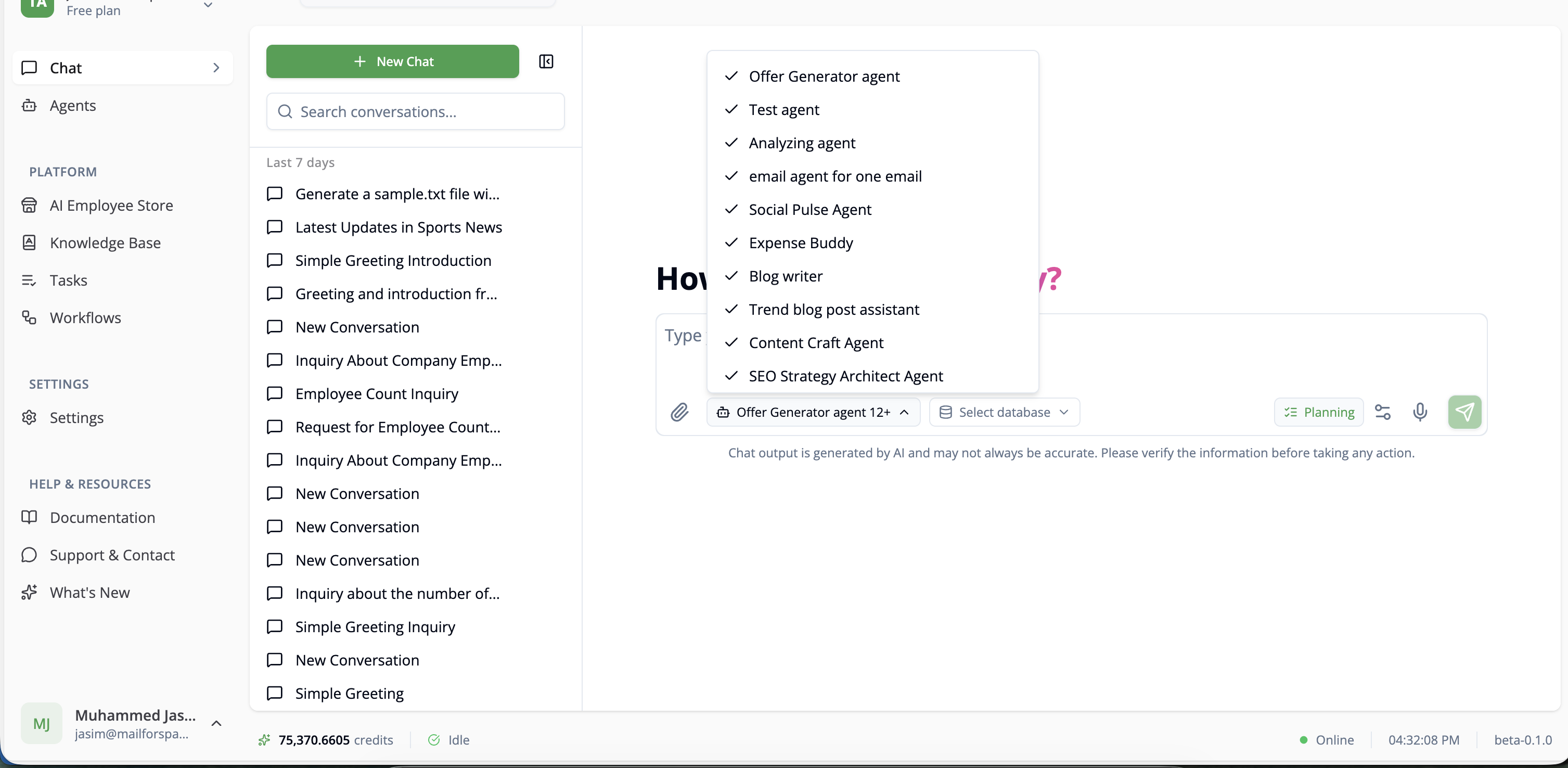
Agent Selection: Chat supports multiple agents working together in a single conversation.
How It Works:
- Click agent selector dropdown in chat input
- Select one or multiple agents
- All selected agents receive your messages
- Agents collaborate based on their specialties
- Remove agents by clicking X on their pill
Default Behavior:
- All published agents selected by default
- AI routes messages to most relevant agent(s)
- Agents access shared conversation context
Agent Pills: Selected agents appear as removable pills above input field.
Use Cases:
- Research + Writing: Research agent gathers data, writing agent creates content
- Code + Review: Development agent writes code, reviewer validates
- Multi-language: Different agents for different languages
- Specialized Teams: Sales, support, and technical agents collaborating
Starting a Chat
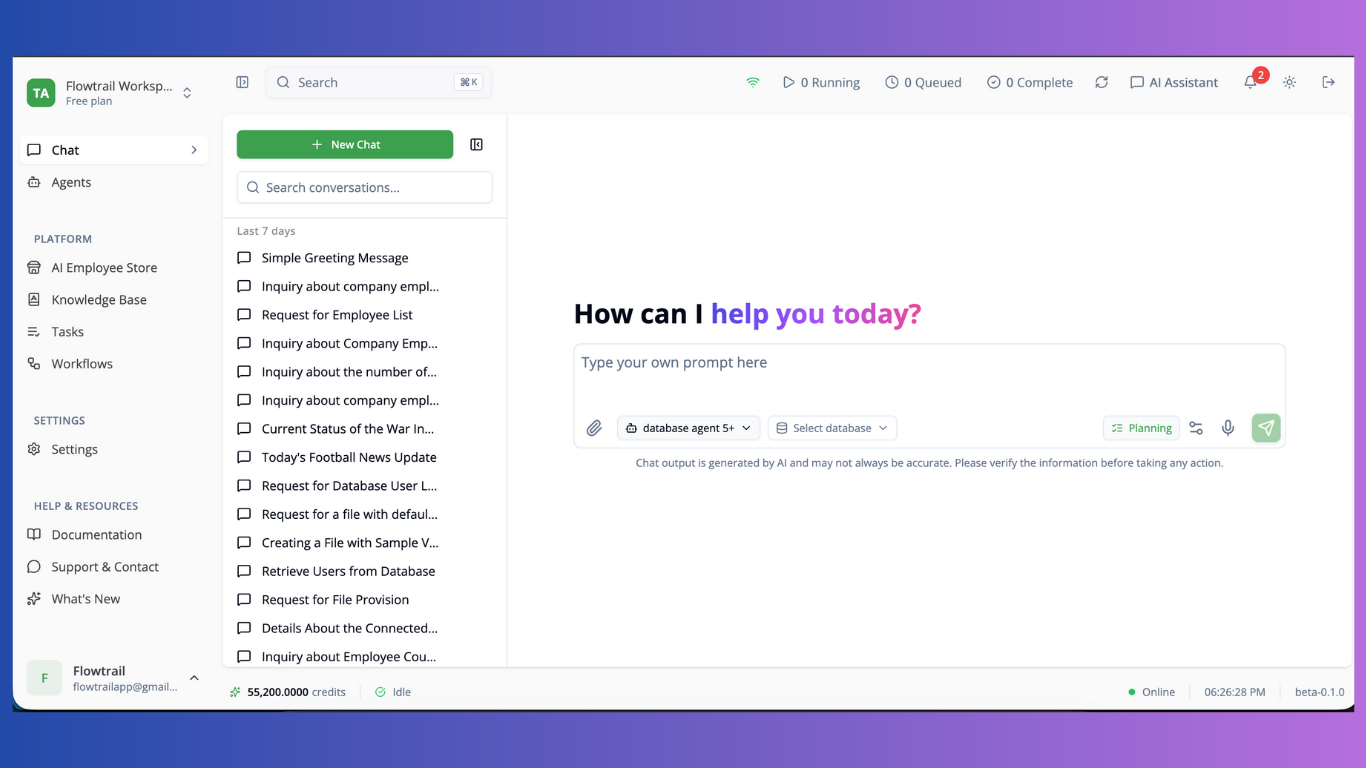
Create New Chat:
- Navigate to Chat page
- Type message in input field
- Press Enter or click Send
- Chat session auto-created with unique ID
Chat Components:
- Chat History: Left sidebar (collapsible)
- Message Area: Center conversation view
- Input Field: Bottom message composer
- Tool Panel: Right sidebar for tool execution details
- Settings: Model configuration and preferences
Sending Messages
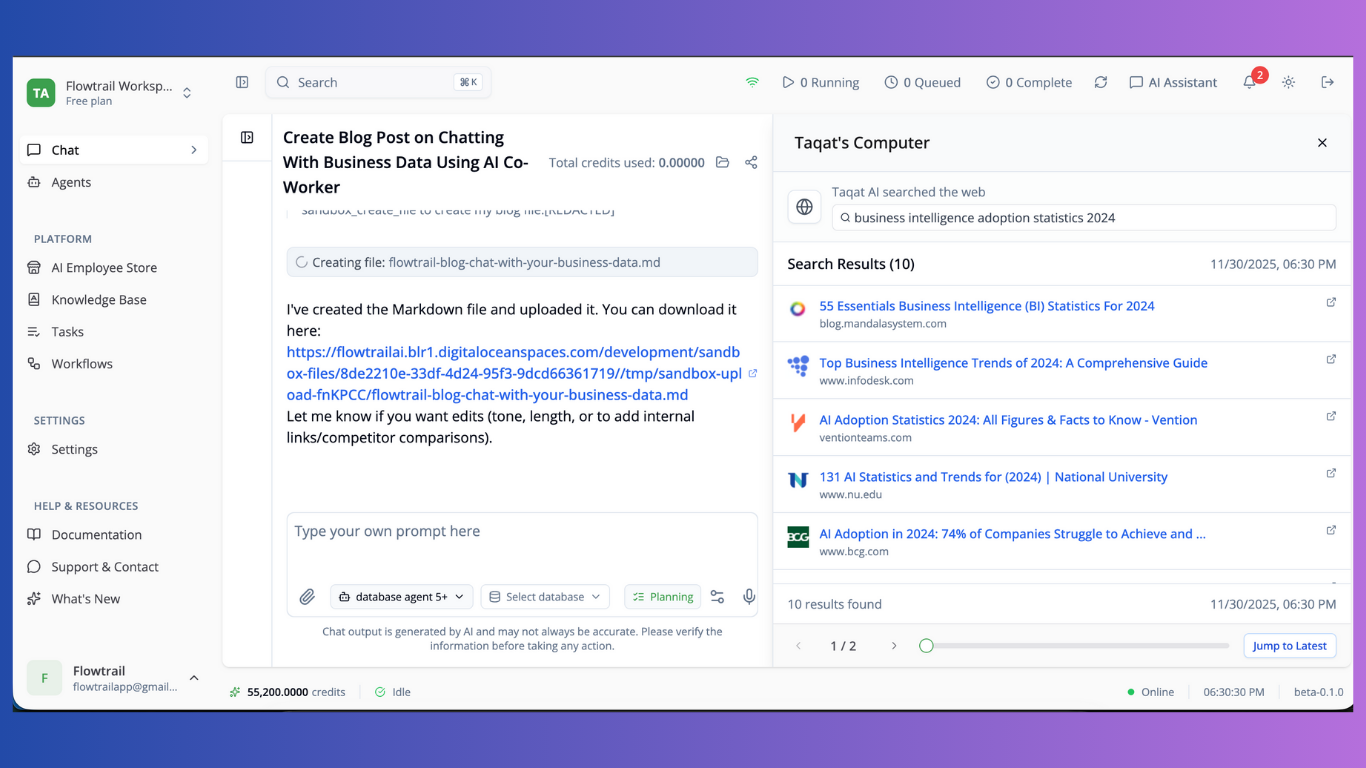
Text Messages:
- Type in input field
- Markdown supported
- Press Enter to send (Shift+Enter for new line)
Attachments:
- Click attachment icon
- Supports: images, documents, code files
- Multiple attachments per message
- Files visible in message history
Voice Input: Voice input capabilities for audio-based interaction.
Agent Responses
Response Types:
- Text: Direct answers and explanations
- Tool Calls: External API calls, database queries, calculations
- Code Execution: Running JavaScript/Python
- File Generation: Creating documents, images, data files
Tool Execution: When agents use tools:
- Tool call appears in message
- Click to view in tool panel (right sidebar)
- Real-time execution status
- Results incorporated into response
Response Streaming: Messages stream in real-time as agents generate responses.
Chat Settings
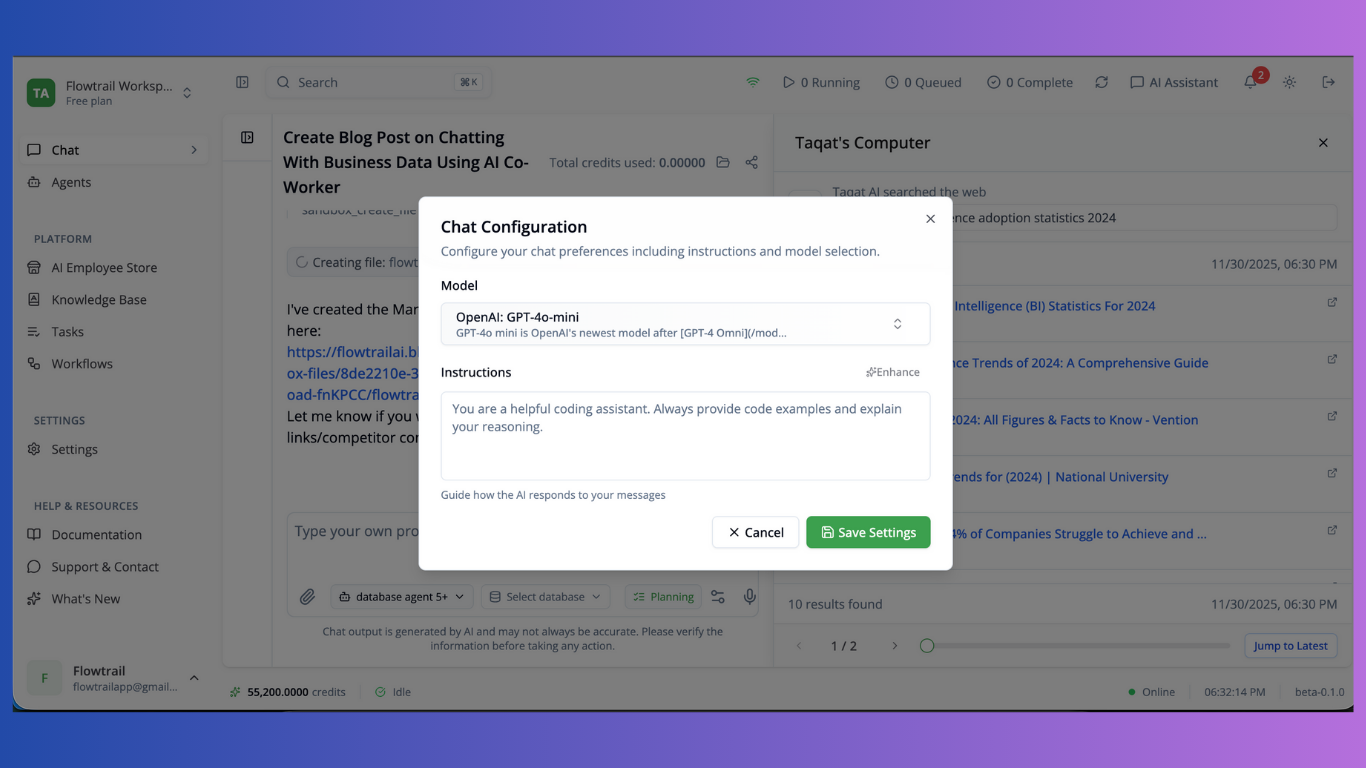
Model Selection:
- Choose AI model (GPT-4, Claude, Gemini, etc.)
- Different capabilities per model
- Workspace default or custom selection
Configuration:
- Temperature: Creativity level (0-1)
- Max Tokens: Response length limit
- Instructions: Custom system prompt
- Reasoning: Enable chain-of-thought
Task Planning: Toggle task planning for structured multi-step responses.
Chat History
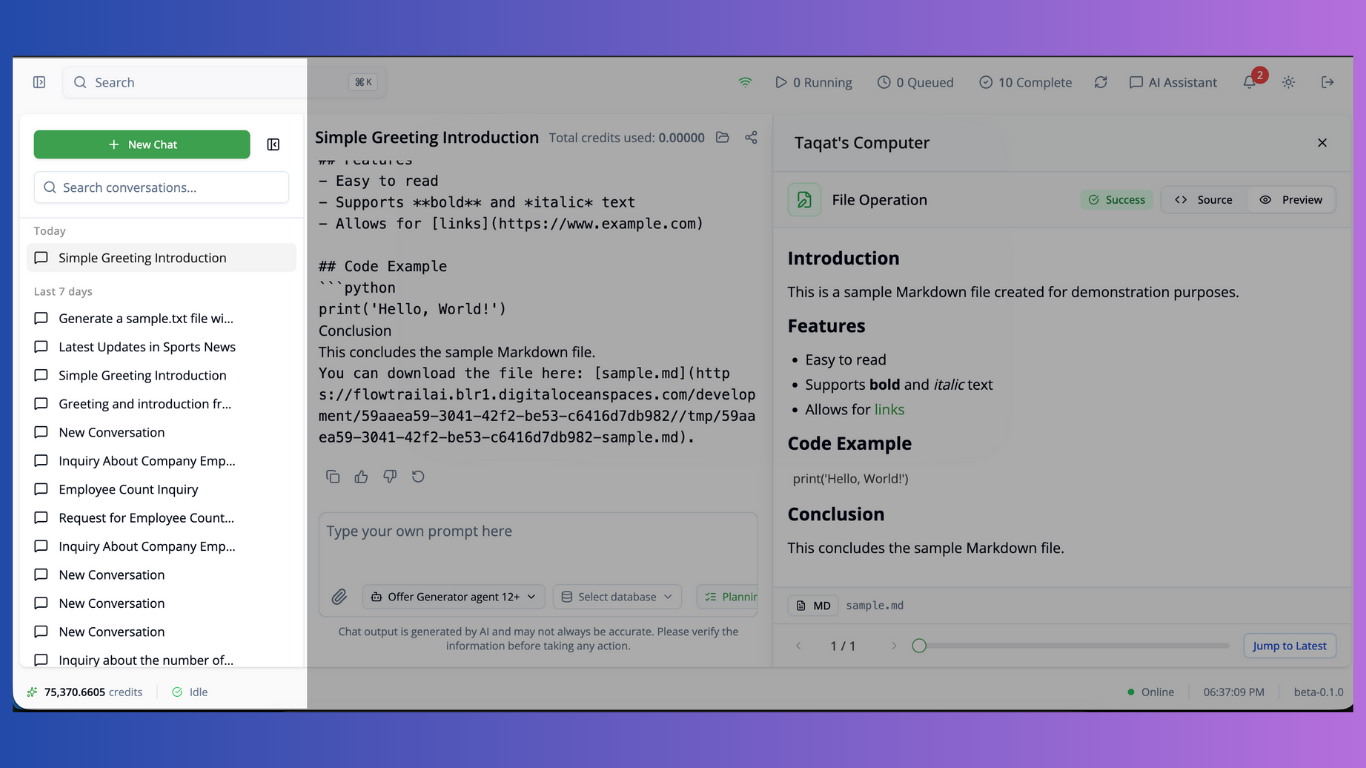
Features:
- Chronological list of chat sessions
- Search by content
- Quick access to recent chats
- Auto-save all conversations
Navigation: Click any chat to load conversation. New messages append to active chat.
Tool Execution Panel
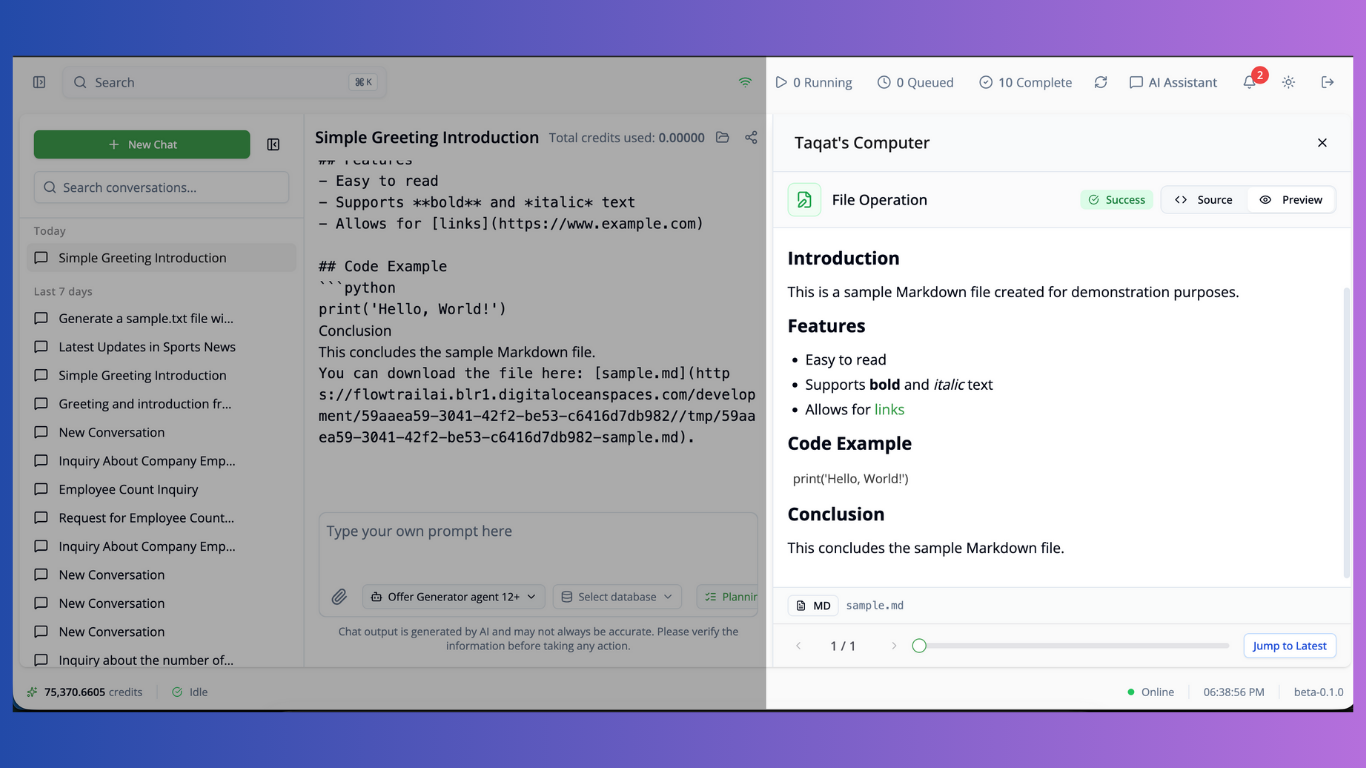
Real-time Tool Visibility: See exactly what agents are doing:
- API calls being made
- Code being executed
- Data being processed
- External services accessed
Tool Types:
- HTTP Requests: API calls with request/response
- Code Execution: JavaScript/Python runtime
- Database Queries: Data retrieval
- File Operations: Read/write files
- Composio Actions: Third-party integrations
Expanding Panel: Click tool calls to view detailed execution information.
File Browser
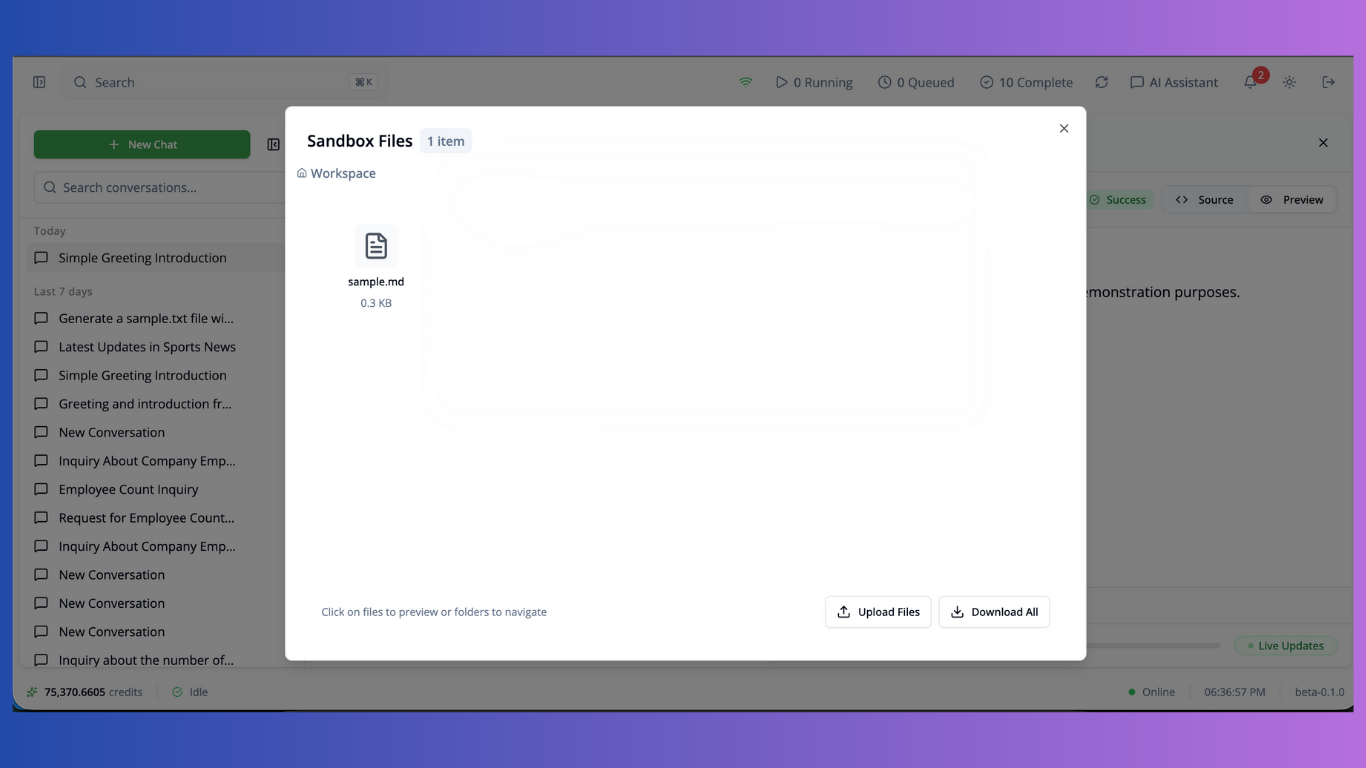
When Available: For chats with sandbox/workspace access:
- Browse workspace files
- View file contents
- Reference files in conversation
- Agent can read/modify files
Access: Click folder icon in chat header.
Best Practices
Effective Communication:
- Be specific about desired outcomes
- Provide context for complex tasks
- Use attachments for reference materials
- Break complex tasks into steps
Agent Selection:
- Use all agents for broad tasks requiring diverse skills
- Select specific agents for specialized tasks
- Remove irrelevant agents to reduce noise
- Test different agent combinations
Tool Usage:
- Monitor tool panel to understand agent actions
- Review tool outputs for accuracy
- Trust but verify external API calls
Conversation Management:
- Start new chat for unrelated topics
- Use descriptive first messages (becomes chat title)
- Share valuable conversations with team
- Archive completed conversations
Use Cases
Quick Tasks: Single-turn requests like “summarize this document” or “generate code snippet”.
Interactive Development: Back-and-forth refinement of code, content, or analysis.
Research & Analysis: Multi-step investigation with agent collaboration.
Learning & Exploration: Ask questions, explore concepts, get explanations.
Team Collaboration: Shared problem-solving with shareable conversations.